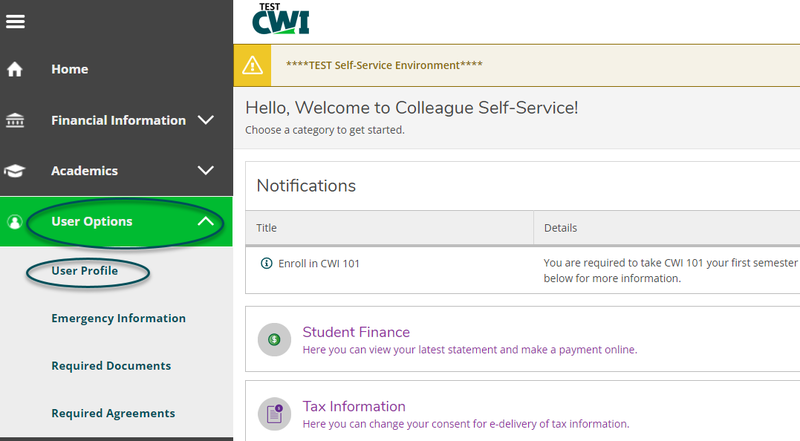
- Select User Options from the left menu options, then User Profile.
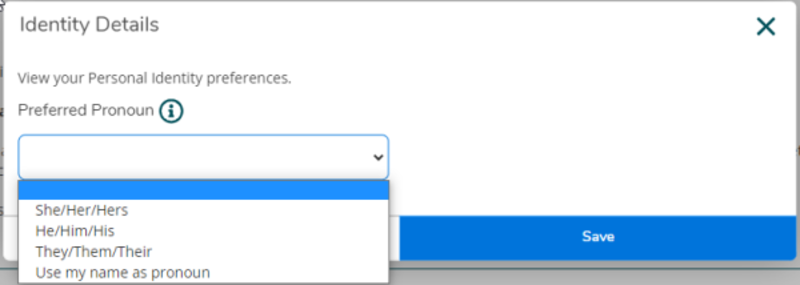
- To add or update your desired pronouns, select Edit Personal Identity.

- Choose your preferred pronouns from the drop-down list, then click Save.
- To submit an address change request, select Add New Address.

- Complete your address details, then click Add Address.
- Once your new address is added, you will receive an email confirming this request.
- Address change requests may take up to one week to process.
Note: Changing your legal address may impact your residency status. As such, current students are asked to additionally complete a Residency Redetermination Form.
In the Email Addresses section, you will see your student email address listed.
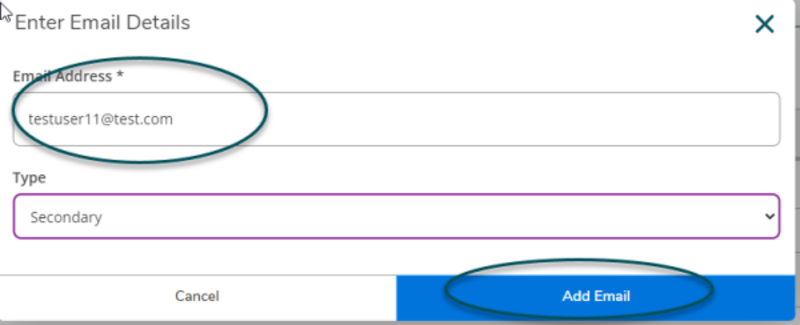
- Select Add New Email to add an additional email address.

- Enter your email address and indicate the type.
- Email addresses added here may be used by the College as an additional way to contact you.
- You may not edit or remove your student email address in Self-Service. That said, any email address you add may be edited or removed.
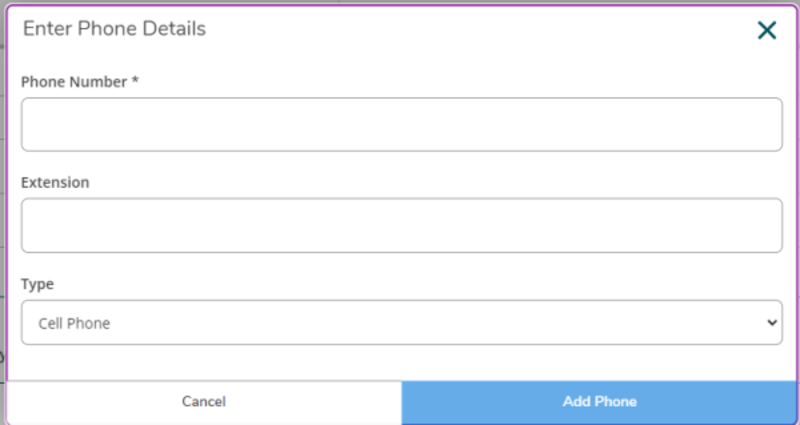
- Select Add New Phone to add a new phone number.

- Enter your phone number and type, then click Add Phone.
- Phone numbers listed in this section may be edited and removed at any time.