
Help Desk
From computers and classroom technology to campus login, Wi-Fi, and online tools, our technology specialists are here to support you. Sign in to explore our full range of services, find quick answers in the Knowledge Base, or submit a ticket.

Digital Navigators
Have questions about using different technologies at CWI? Our friendly Digital Navigators are CWI student experts here to help you navigate tools, systems, and services on campus.
- Get help with Canvas, email, Microsoft Office, Wi-Fi, and other digital tools.
- Learn to navigate CWI systems for class registration, scholarship applications, textbook purchases, and career exploration tools.
- Meet one-on-one at convenient campus locations, get answers on the spot, and feel confident in your college journey!
Accessing Your CWI Account
Once admitted to the College, you will need to set up your CWI account.
- You will use your CWI account to access myCWI, Canvas, your student email, Microsoft 365 apps, and other college systems.
- During setup, you will be required to enroll in multi-factor authentication. This adds an extra layer of security by requiring your password and a second verification step, such as a code sent to your phone, which helps protect your account from unauthorized access.
- After your account is set up, you can use the Self-Service Password Reset Tool to change your password or regain access to your account at any time.
- For login assistance, please contact the Help Desk online or by calling 208.562.3444.
myCWI
Stay connected and on track during your educational journey with the new and improved myCWI! This customizable hub is your first stop for quick access to:
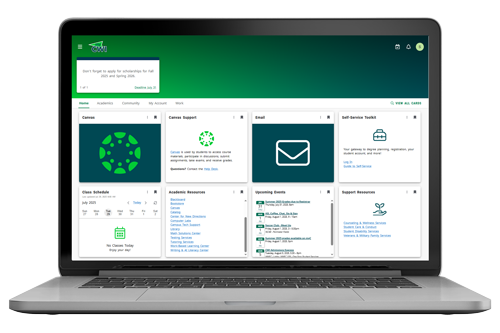
- Your Self-Service Toolkit
- Canvas
- Important announcements and notifications
- Advising
- Calendars and events
- Links to resources and services across the College
- And more!
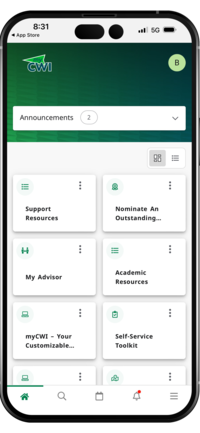
Download the app
Access myCWI on the go with the app, free on Apple or Android.


Tools & Resources
Stay organized and connected in your classes with Canvas. Log in to view course content, participate in discussions, submit assignments, take quizzes or tests, and check your grades.
Once admitted to the College, students are provided with an official CWI email account through Outlook. Your student email account is where you will receive important information and communication from the College and your instructors.
All students are provided free access to the Microsoft 365 suite which includes Word, Excel, PowerPoint, Outlook, OneDrive, and more. Microsoft 365 apps may be used entirely online or installed on up to five (5) devices free of charge.
To install software, log in to Microsoft 365.
- Select Apps from the menu on the left.
- Install apps on your device(s) individually by selecting the app(s) you would like, or install all the apps by selecting Install Apps in the top right corner.
To ensure you are able to view, download, or print PDF documents, be sure to have the latest version of Adobe Acrobat Reader installed on your device(s). If you are using a CWI-owned device, Adobe Acrobat Reader should already be installed.
Wireless network access is provided at all campus locations. To access CWI's wireless network:
- Connect to CWI-PUBLIC using the wireless configuration utility for your device.
- An authentication page will appear. If you do not see an authentication page, open your browser and visit cwi.edu to continue.
- Enter your CWI username and password, agree to the terms and conditions, then select Sign On.
- If you do not have CWI login information, you may create a temporary login by clicking "Don't have an account?".
For the best online experience on campus or while using applications provided by the College, Google Chrome and Mozilla Firefox are the most compatible browsers.